Case positions for Overhead CodeDodger wireless keypad

When trying to set up a new Overhead CodeDodger wireless keypad (with buttons for “SET” and “PRGM”), it is very important to understand what the instructions mean by an “open” case. This is best seen at night when the buttons light up.

In the three pictures below, the case goes from closed, to open, to off. The huge difference is “open” versus “off”. Looking at “off”, there is a button on the top left of the wireless keypad. This needs to be pressed in, and it is pressed in by the case cover. You can see a nub on the case cover that will press that button in. When in position “open”, that nub will push in that top left button, and at night, you will see the keypad light up. Credit for RTKNJ for this amazing advice.

With this knowledge, you can follow the instructions found elsewhere, like here and here.

Last note, if you see the backlight on your wireless keypad, you do not need a new battery.

CodeDodger case closed

Case closed

CodeDodger case open

Case open

CodeDodger case off

Case off

Posted in Hardware, House, How-To | Tagged , , | Leave a comment

UHD 4K @ 60Hz Checklist to Get Your Monitor Working to Its Fullest

A 4K monitor that is running at 30Hz is choppy and jumpy. Everyone wants the full 60Hz for the smooth mouse scrolling. But 4K 60Hz is so much data that needs to be transferred so quickly that every hardware and its configuration from the monitor to the laptop needs to support 4K 60Hz. One weak chain will result in 4K 30Hz.

Follow this guided checklist and be ready to read your hardware’s manual!

Monitor

Look at the website where you bought the monitor. Does it explicitly say it runs 4K 60Hz?

Monitor ports

Which ports support 4K 60Hz? Are there configurations you need to set? Read the monitor’s manual.

For example, for my Samsung LU28E85KRS/GO, HDMI #1 does not support 4K 60Hz but HDMI #2 does. The DisplayPort port supports 40K 60Hz, but only after setting the DisplayPort Versions  to 1.2 in the monitor’s menu.

Cables

Use the cables that came in the monitor box. If the monitor was advertised with 4K 60Hz, these cables will support it. Otherwise:

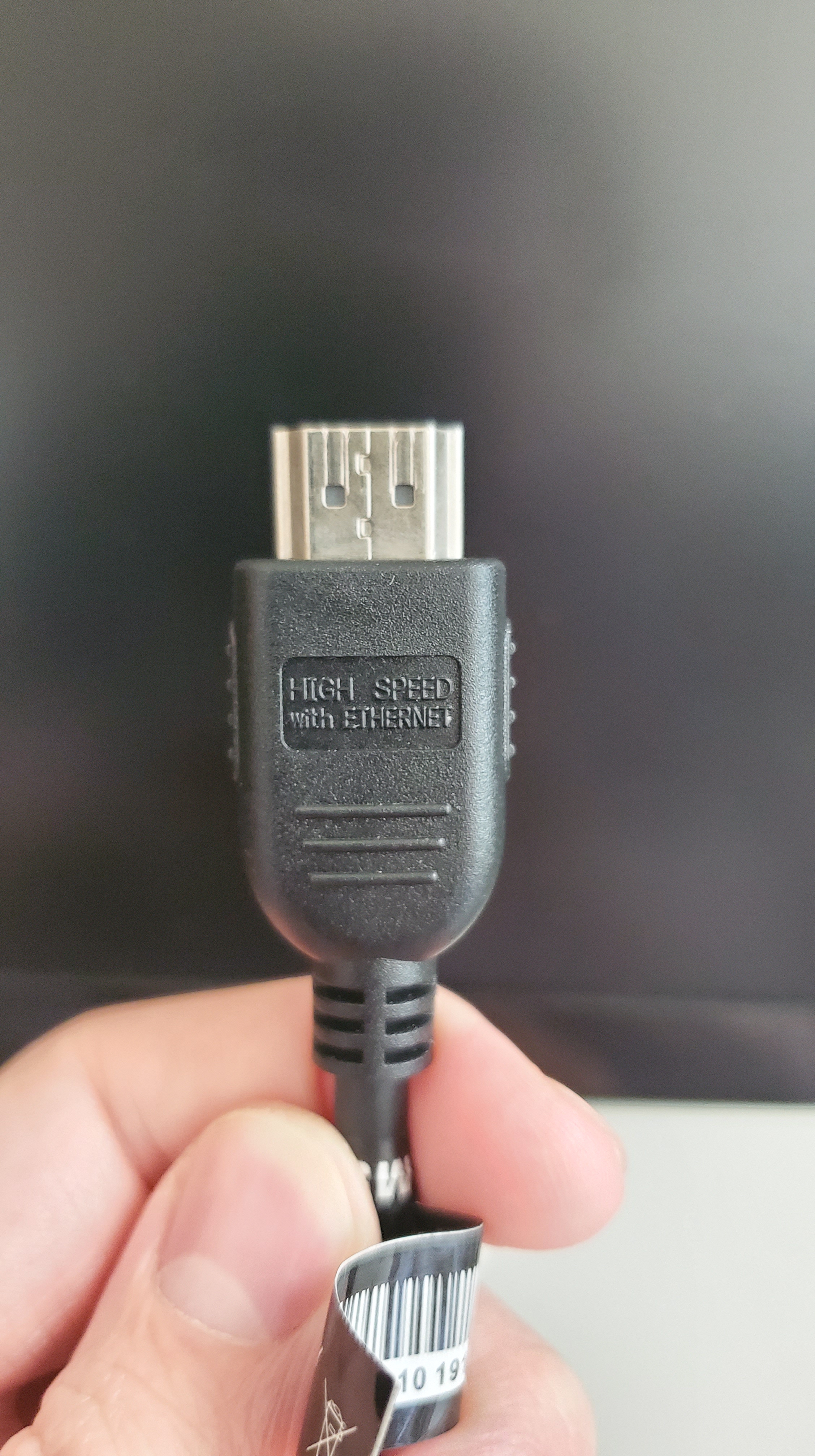
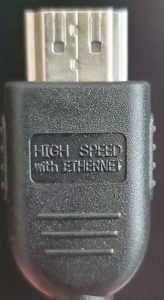
HDMI – Need 2.0 or greater. These will say “High Speed” on the cable near the ends. HDMI High Speed cable
Display Port – Need 1.2 or greater.

USB C – Need 3.0 or greater

Cable adapters

Read the specifications! Cheap alternatives could overheat and not deliver on their promises.

USB C Adapter from Apple’s website USB C Adapter

3840×2160 at 60Hz on:

iPad Pro 11-inch, iPad Pro 12.9-inch (3rd Generation), MacBook Pro (15-inch, 2017 and later), iMac (Retina 5K, 27-inch, 2017 and later), iMac (Retina 4K, 21.5-inch, 2017 and later), and iMac Pro (2018)

1080p at 60Hz or UHD (3840 by 2160) at 30Hz on:

MacBook Air (2018), MacBook Pro (13-inch, 2016 and later), MacBook Pro (15-inch, 2016), iMac (non-Retina, 21.5‑inch, 2017), and Mac mini (2018)

Computer Graphics

Duckduckgo/Google your computer’s graphics card and “4K 60Hz”. Modern computers should support this. For Macs, support varies on device and year, but the cable adapter quote above is a good reference. Just be sure to verify your Macbook type, size, and year.

Computer ports

Read your computer’s manual! You cannot tell what version a port is by looking at it.

On my LG Gram 15Z975, there is an HDMI port and a USB C port. The HDMI port is version 1 and does not work, but the USB C is 3.0 and does support 4K 60Hz.

Windows – Display Settings

Windows lets you select the resolution and refresh rate in a deep menu. In that menu, you can verify what refresh rate your monitor is running at, and increase or decrease it. Additionally, you can pick the highest resolution that supports 60Hz. 

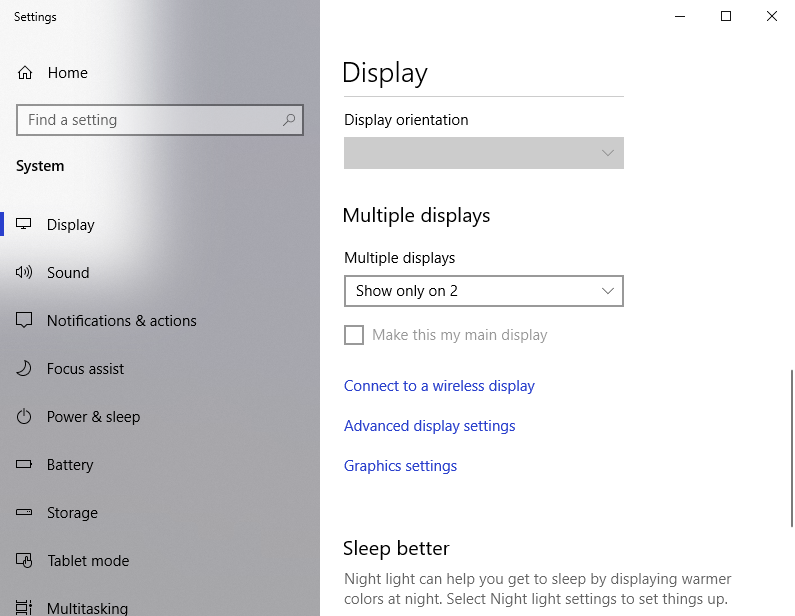
Open Display settings from the Control Panel. Scroll and select “Advanced display settings”.
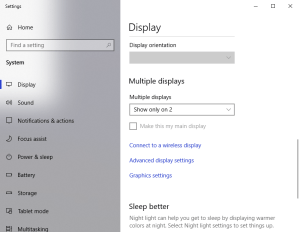
display menu

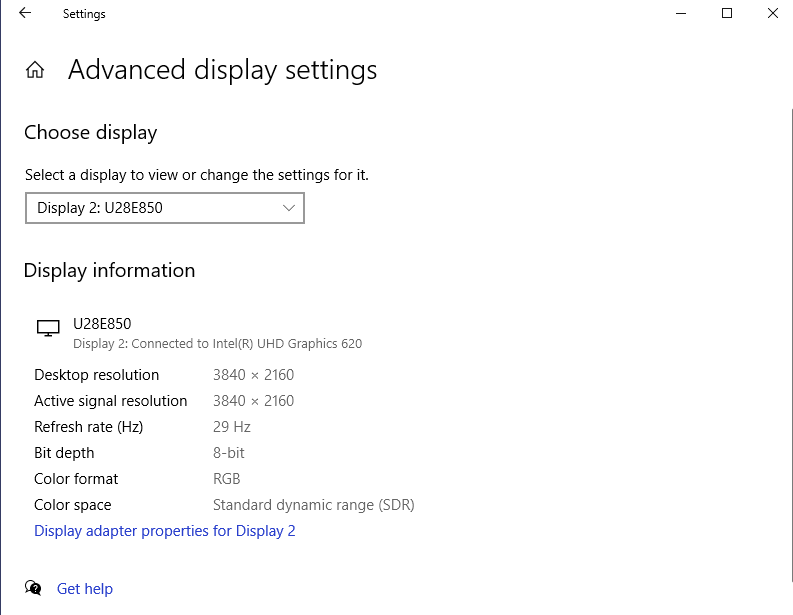
Some additional monitor information is displayed. Select the Display # from the dropdown menu and then click “Display adapter properties for Display #”.
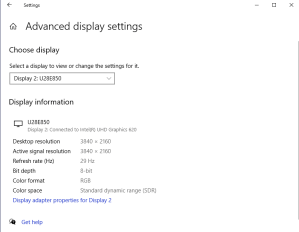
advanced display settings

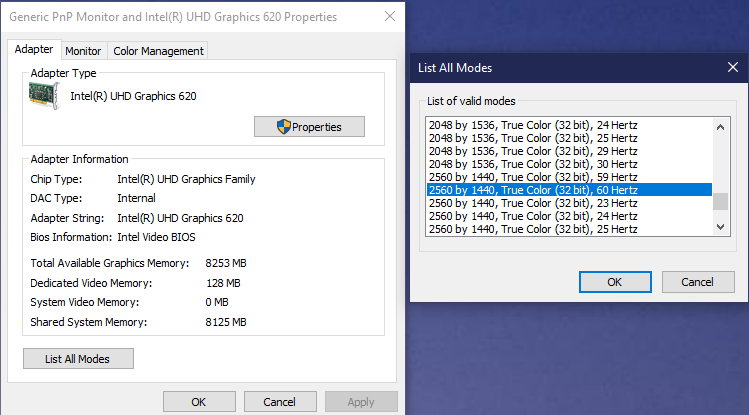
This could be different depending on your Graphics adapter, but the next step is click “List All Modes”. Pick your preferred resolution and refresh rate. 

graphics card and list modes

Mac – Display Settings

Macs do a cool little thing for their retina displays, which they extend for high resolution monitors. They scale smaller displays up to a monitor’s full resolution. This means they send the full resolution to the monitor but the computer has smoothed all of the text edges. This avoids the monitor pixelating the text. 

But this cool trick makes it difficult to verify if you are running at 60Hz or 30Hz! If you are stuck at not being able to run 4K 60hz, you can also pick a lower resolution that supports 60Hz while you wait for new cables to arrive in the mail. 

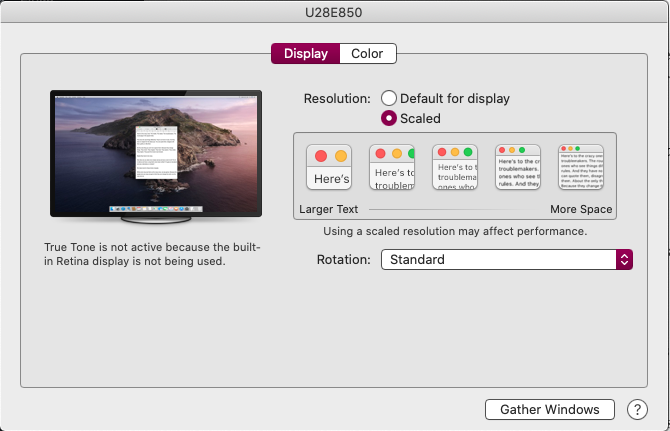
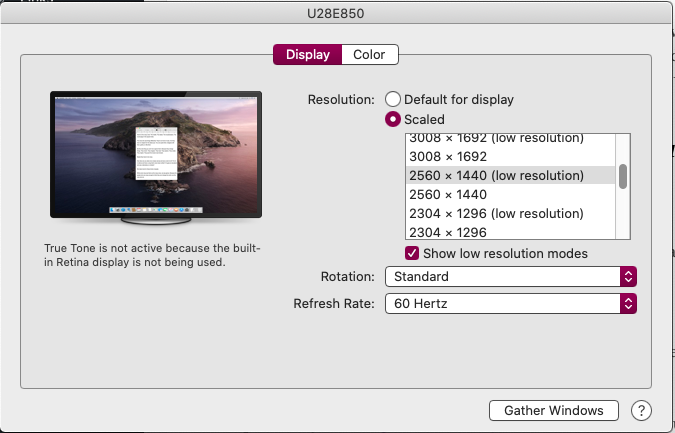
Macs simplify the amount of resolutions shown in their Displays menu, but by Option clicking on “Scaled” and then selecting “Show low resolution modes”, all the display modes are visible. 

mac display menu default

Now it is trial and error. Pick a low resolution mode, check the possible refresh rates, and if not 60Hz, keep going down. For me, 2560×1440 worked for me!

mac displays with low resolutions

References

Posted in Hardware, How-To | Tagged , , , , , , , , , , , , | Leave a comment

Move Google Contacts to Nextcloud Contacts

The process is easy. Go to the Google Contacts website: https://contacts.google.com/

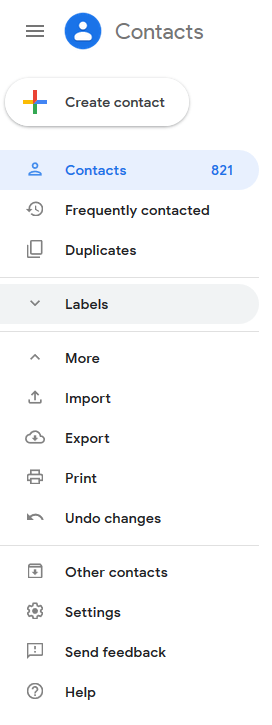
Expand “More” and select “Export”.

Export all or some of your contacts, but select vCard format and save to your Desktop.

Go to your Nextcloud website’s Contacts app: https://<your-nextcloud-website&gt;.com/index.php/apps/contacts.

Expand “Settings” and click “Import Into”. In the file dialog, select your downloaded vCard.

Wait for the import to finish.

Now if you are using Google Contacts on your phone, you will want to disable that sync so you do not get duplicated contacts. You can sync your contacts with CalDAV/CardDAV Android app.

You can also delete all of your Google Contacts as well, but I will not include those instructions in case people are just looking at pictures.

Posted in How-To, Nextcloud/OwnCloud | Tagged , , , , , , , | Leave a comment

Add Nextcloud calendar to Google Calendar

Below is how to see (read-only) your Nextcloud calendars in Google Calendar. I do not believe Google supports writing to Nextcloud calendars from Google Calendar. This example is for my Calendar “Example Calendar”.

From the calendar app page:

https://your-nextcloud-server.com/index.php/apps/calendar/

Under your list of calendars on the left

  • Click the share button
  • Select “Share Link”
  • The click the second share button

Your browser will open to a new Nextcloud Calendar page that is for public viewing.

https://your-nextcloud-server.com/index.php/apps/calendar/p/XXXrandomlettersXXX/Example-Calendar

On the top right, click on the Subscribe button.

Your browser will either ask you how to handle this type of link, or will redirect you directly to Google Calendar, where you can add your calendar in this format.


webcal://your-nextcloud-server.com/remote.php/dav/public-calendars/XXXrandomlettersXXX?export

Posted in How-To, Nextcloud/OwnCloud | Tagged , , , , | 3 Comments

SmartRG router cheatsheet

The SmartRG router (supplied by Sonic ISP) has a bad user interface. There is no easy mode, just very network centric terminology to maneuver. 

Local Server Walk-through

Let’s say you plug in your laptop to Ethernet or connect to the Wi-Fi. First, go to the “Connected Devices” section and get your IP address and MAC address. Second, go to “Static IPs” and add to the Static IP Lease an entry for your MAC address and IP address (you can change the IP address if you want, but you have to restart your device). Third, go to “Port Forwarding” and forward ports to the IP address, like 22 for SSH or 80 for HTTP. Lastly, if your device is using a domain name, you can add a “Static DNS” route so you can reference your laptop within your local network (this solves the problem of NAT loopback). 

Cheatsheet

Connected Devices

Static IPs

Port Forwarding

Static DNS

Sources

Posted in How-To, Networking | Tagged , , , , , , , , | Leave a comment

SmartRG network hard drive – SAMBA version too old

The SmartRG router (supplied by Sonic ISP) has the option of mounting a hard drive for access by all computers on the network via the SAMBA protocol. But the SmartRG router supplied has an old version of the SAMBA protocol, that Windows 10 will not use due to major security vulnerabilities with it. Getting a firmware upgrade for the router is not easy on their SmartRG website, but teksavvy.com has a firmware upgrade that can be used. But again, an old SAMBA protocol is used, so Windows 10 will not connect to the networked hard drive.

Sharing the Hard Drive to just be denied

If you want to go ahead and still try to access the hard drive, follow these instructions with the following modifications/highlights:

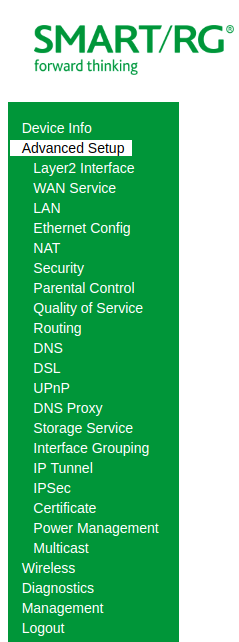
  • SmartRG’s device configurations are located under: Advanced Setup > Storage Service > Storage Device Info
  • On the router, give the device a name in this menu
  • In Windows, you will be Mapping a Network Drive
  • This will be your address: \\192.168.1.42\given-name
  • When prompted for a password, use the admin password for your router
Posted in How-To, Networking | Tagged , , , , | Leave a comment

Nextcloud on AWS with S3 and Lightsail

Running a Nextcloud instance in AWS rather than at your home has some benefits:

  • S3 storage means unlimited storage
  • Static IP
  • Fast bandwidth
  • Always able to SSH into machine and restart it

I suggest this blog that provides a few steps to get you up and running in less than 15 minutes, along with getting a free domain name at dot.tk.

To avoid:

  • Do not use Amazon Linux
  • Do not use encryption (my server stopped being able to retrieve files)


Posted in AWS, Nextcloud/OwnCloud, Reviews | Tagged , , , , | Leave a comment

Temporary fix for updating external HPFS/NTFS/exFAT hard drive’s permissions so Plex can access

When I plugged in my external hard drive that was on Windows to a Linux machine (Raspberry Pi 3), it was automatically mounted at /media/brian/Brian-HD, but the permissions were drw- --- --- 1 brian brian. I needed Plex to be able to see and use the hard drive, but no matter how much I tried to open up permissions, the ls -l command never changed.

Failed attempts to update permissions

sudo -R chmod 660 /media/brian/
sudo addgroup brian plex
sudo addgroup plex brian

Finding out that the drive is an exFAT.

sudo fdisk -l 
Device Boot Start End Sectors Size Id Type 
/dev/sda1 256 488378111 488377856 1.8T 7 HPFS/NTFS/exFAT

What worked for me

PLEX support forums has an article specifically on how to mount NTFS hard drives (but exFAT works too) so you can get permissions for PLEX to see the files. But their article is old and has broken links, so I will restate it with updated links:

# Run and get the UUID of your device
blkid

# Edit /etc/fstab
sudo nano /etc/fstab

# Add this line to the bottom 
UUID=<UUID from before without quotes and brackets> /media/brian exfat permissions,auto 0 0

# Unmount your device
sudo umount /media/brian/Brian-HD

# Try mounting and troubleshoot
sudo mount /media/brian


The last step will work, but you might have to do some troubleshooting to make sure the format type is right and the mount location is correct.

References

Mounting NTFS Drives on Linux

Posted in Hardware, How-To, Plex | Tagged , , , , , , , | Leave a comment

Factory Resetting Nexlux LED Light Strip

TNexlux LED Light Strip Boxhe Nexlux LED Strip Lights sold on Amazon have a confusing set of “How to restore factory settings?” instructions

First, to add a device, install their app (Magic Home Pro app on Google Play or Magic Home WiFi on App Store) and click “Add Device”.

But if you already have a device and changed Wi-Fi networks, you will need to reset that device.

Repeat four times unless the device strobes multiple colors:

  1. Plug into power. With remote, turn on lights. Wait a few seconds.
  2. Unplug from power! (Not turning off with remote.) Wait a few seconds.

MagicHomeFactoryReset


Posted in Hardware, How-To, Reviews | Tagged , , , , , | Leave a comment

Google Location Sharing Review

Google’s version of Apple’s Find My Friend is Google Location Sharing. You can set this up to share your location with friends for a limited amount of time, or you can set it to always share your location with family (or friends). This helps them know where you are and hopefully make sure everyone is safe.

It works on Android and iOS, though on iOS, you need to allow Google to have background access to location services. Otherwise, the location updates will only be since you last opened a Google App on iOS.

I have not experienced any additional battery drain. If you use Google Location History, it is already saving and reporting your location to Google. So, this is just allowing your family member to view you using data your phone is already reporting.

In my usage, updates are between 2-30 minutes, but you can always ask it to refresh, which seems to pull a newer location, but I am not sure what it is exactly doing.

What are the alternatives? The best would be Glympse, which has more features for short-term sharing. It lets you pick a destination, showing your friend where you were, where you are going, and the ETA to get there.

Posted in Reviews | Tagged , , , , , | 1 Comment

Secure Messaging Apps Review

oblivate Review

Makeusof.com released their own security app called oblivate, available on Android and iOS. Their announcement article was the typical propaganda saying the app has these features:

  • Message delete timers (“self-destructing”)
  • No screenshots (Android only)
  • No chat history
  • Free and no ads

But for a company to say an app is secure, as they are, the app should have at a minimum:

  • Encryption
  • Open-source or 3rd party auditing

And they do not. (They do not even have picture support!)

Coming soon, obliviate hopes to add encryption, support for audio, pictures, and videos, custom notification sounds, and more! We hope you enjoy the app.

Overview of All Secure Messaging Apps

This is a problem amongst the secure messaging app space, they all have security tradeoffs:

  • iOS stores your private keys in their servers.
  • Telegram uses its own encryption algorithm.
  • Wickr and this app are not open source.

Or usability tradeoffs:

  • Signal (Open Whisper System) is confusing to set up and limited users to talk to.

The best compromise out there is Whatsapp. It uses the best open source end-to-end framework, done by Open Whisper System. With end to end encryption, a government cannot force Whatsapp to give up your messages because Whatsapp cannot even see them! The one known security tradeoff is actually a feature – you can recover messages when you switch phones. This could be used by a government to get some of your recent messages. With that security flaw in mind, Whatsapp has a huge user base so you can talk to mostly anyone and the app is easy to use.

I suggest Whatsapp for normal, daily, secure messaging use.

Posted in Reviews, Security | Tagged , , , , , , , , , , , | Leave a comment

[NO SOLUTION] Lenovo Thinkpad shuts down after exactly 30 minutes

I recently received a rather new Lenovo Thinkpad Ultrabook for free because the machine running Windows would shut down after 30 minutes exactly. It was running Windows and I thought it was a problem with Windows, well…

Installing Linux, it would shut down after 30 minutes exactly.

On AC, Battery, or AC with no battery, it shut down after 30 minutes exactly.

In just the BIOS screen (no Operating System loaded), it shut down after 30 minutes exactly.

Updating the BIOS to the latest version, it still shut down after 30 minutes.

Verdict – Hardware

There are many forums discussing this topic across Lenovo and some will say “[SOLVED]”, but that is just because the post became stale. From what I can see, there is no solution to this and trying to fix it will be a waste of time. I believe this is only affecting older laptops so if you are reading this, you are probably out of warranty. But if you are in warranty, return the laptop. If you are out of warrant, get a new laptop.

References

Do a Google search for Lenovo shutting down after 30 minutes. I went through mostly all of the results.

Posted in Hardware, Reviews | Tagged , , , , , , , | 2 Comments

Saving Tree Style Tabs into Bookmarks with Firefox

On Firefox, my favorite add-on is Tree Style Tabs (download), because

  1. you can see all of your tabs and their names
  2. tabs have hierarchy (parent > children > grandchildren)

Once you use it, you will always want to use it, especially at work. But if you get the error message “failed to get permissions to create bookmarks“, you need to grant permissions to the add-on. This is not straightforward. The notification will probably be cutting off some of the words! But if you got here, this is how you do it.

Go to Add-ons > Extensions > Tree Style Tabs > more.

You should see this, so check the checkbox next to “Allow to create bookmarks”

additionalContext

You might get another error message! This is because this add-on’s preferences page cannot request access to the bookmarks. So, you now need to click on the add-on’s icon in your toolbar:

media-20180119

And follow the prompts there. The confirmation dialog will likely appear on the top left of your browser window!

Posted in Desktop Apps, How-To | Tagged , , , , | 4 Comments

NAT Loopback on Xfinity

The current Xfinity routers (end of 2017) do not support NAT Loopback and have no options for enabling NAT Loopback.

What is NAT Loopack?

NAT Loopback or Hairpinning is when Device_A behind a router tries to access another Device_B behind the same router by Device_B’s external name (e.g. domain name) instead of its local name (e.g. local IP address). Because of the way packets will leave the router and reenter, some routers disable NAT Loopback for security reasons.

Problem Description

When a router does not support NAT Loopback, a techie will have a problem if they are:

  • hosting a home server
  • using a domain name to route to the home server
  • accessing their home server via the domain name while on the same network as the home server

Partial Solutions

  1. While home, access the server using the local IP address.
  2. Use a VPN to route traffic out of your home, which will then go back home and to your server.
  3. Buy a router that supports NAT Loopback. [link_1]
  4.  Set up a local DNS server to change the public domain name to the local IP address.

References

Posted in How-To, Networking | Tagged , , , , , , | 4 Comments