Mac Flag’s Broken Flags

While Mac Mail is simple and works, it has a problem syncing flags with Microsoft Exchange server. It can add messages as flagged, but when removing the flags, the messages will no longer be shown as flagged but the counter will still continue counting. What is the point of flags if they are always flagged!

The one solution that worked for my from the Apple Discussion Threads is to bounce Spotlight form the terminal:

cd ./
sudo mdutil -i off
sudo mdutil -i on /

This is not ideal and I suggest cleaning out the flagged messages (or remembering what they are) in case all the messages get removed.

Sources

Posted in Apple, How-To | Tagged , , , , | Leave a comment

Removing Windows 10 Apps

The apps that come with Windows 10 are neat but they seems to always want to run and they mess with VirtuaWin. So, you can try to

  • Uninstall them from the menu. Right click on an app and select Uninstall.

But that option will be removed for the native apps.

  • Open Powershell
  • Run Get-AppxPackage *windowscommunicationsapps* | Remove-AppxPackage

For more information, please see the sources below.

Sources

http://www.howtogeek.com/224798/how-to-uninstall-windows-10s-built-in-apps-and-how-to-reinstall-them/

Posted in How-To, Windows | Tagged , , , , | Leave a comment

Outlook All Day Events Across Time Zones

If you are an employee of a company that has offices in two different time zones, then Microsoft Outlook is so annoying when it comes to All Day Events.

Say a coworker one hour behind you is out of the office on Wednesday. You will see a calendar event for him spanning two days, even though you know he will just be out from 9-5 his time, not literally his midnight to midnight.

Well, does Microsoft know about this bug and plan to fix it? Yes and no.

Their workaround is comically bad. Just make Out of the Offices for the time you will not be in the office during your working hours.

  1. Nobody wants to do repeating occurrences for 9-5. People want to make one OOO event.
  2. If you share your OOO with others, now their daily calendars will be filled by you.

Come on Microsoft!

Sources

Posted in Reviews, Windows | Tagged , , , , , , | Leave a comment

VirtuaWin tray flashing

The VirtuaWin tray icon will flash when a program becomes unresponsive and hangs.

In Windows 10, this happens frequently with all of the Windows 10 apps, like Mail & Calendar, Movies & TV, etc. While removing and uninstalling these apps is one solution, you can do a one time fix using VirtuaWin:

  1. Right click on VirtuaWin tray icon.
  2. Select Setup
  3. Go to the Modules tab
  4. Select WinList
  5. Select Configure
  6. Sort by the “S” column
  7. For all rows tagged with “H”
    1. Select the row
    2. Select Restore

Sources

Posted in How-To, Windows | Tagged , , , , | 1 Comment

Install NVidia on Linux Mint

If you have a NVidia graphics card, you will need to install drivers for your Linux Mint OS to use this hardware. If you got it, use it, especially if you are using multiple screens.

Follow the instructions on this website: http://www.binarytides.com/install-nvidia-drivers-linux-mint-16/

Do not install drivers from the NVidia website. The website above is simple and less manual steps. Do it.

  1. Download your driver from the NVidia website. It will be large .run file.
  2. Hold CTRL + ALT + F1 to enter into an a full screen terminal. Log in with your username.
  3. Stop your x server: sudo service mdm stop
  4. Install x-swat: sudo add-apt-repository  ppa:ubuntu-x-swat/x-updates
  5. Refresh your available sources: sudo apt-get update
  6. Install their NVidia-current, which is outdated but sets up many things to avoid errors with installing on your own: sudo apt-get install nvidia-current
  7. Restart machine: sudo reboot
  8. Do Steps 2 and 3 again to get into the full screen terminal.
  9. Run your NVIDIA*.run file: sudo ./NVIDIA*.run
  10. Follow prompts.
  11. Restart: sudo reboot
  12. If Cinnamon crashes, you will need to read this and figure out what is best for you.

Sources

Posted in How-To, Linux | Tagged , , , , , , , , | 1 Comment

Renewing Let’s Encrypt Certificate for OwnCloud

Assuming you have followed the steps in the previous article to get your certificate, then you should be able to run this if your certificate is not expired.
cd /tmp/letsencrypt
sudo ./letsencrypt-auto renew

or to get a new certificate

sudo ./letsencrypt-auto -c /path/to/domain.com.ini -d domain -d www.domain.com auth

That may not happen if you have done fancy stuff on your website.

Expired

Google Chrome will not go to your website, so for troubleshooting use Firefox. Letsencrypt does not follow the same warnings that Google Chrome shows. It also does not care about HSTS headers.

You are going to have to reissue the certificate because renew will not work.

Document Root

If you are telling Apache that http://www.domain.com should just be http://www.domain.com/owncloud, then anything placed  on your server for letsencrypt will not be visible you need to temporarily disable that override.

Change DocumentRoot from /var/www/owncloud to /var/www

sudo vim /etc/apache2/sites-available/ownCloud-ssl.conf
sudo vim /etc/apache2/conf-available/owncloud-ssl.conf

Certificate Location

The following is the contents of my domain.com.ini file.

rsa-key-size = 4096
server = https://acme-v01.api.letsencrypt.org/directory
text = True
authenticator = webroot
agree-tos = True
renew-by-default = True
email = email@gmail.com
webroot-path = /var/www/html

Since I set webroot-path to /var/www/html, I need to create a logical link in /var/www/ to the .well-known directory so that the verification can work.

make logical link
cd /var/www
ln -s -T html/.well-known/ .well-known

Restart Server

You can do reload> or restart but both work.
sudo service apache2 restart

Posted in How-To, Nextcloud/OwnCloud | Tagged , , , , , , , , | Leave a comment

Moving large files and folders in OwnCloud

OwnCloud works well for small changes and uploads, but moving or renaming a folder that is a few gigabytes will be troublesome. OwnCloud might think you are actually deleting and then reuploading the files.

You can try WebDAV for reasonably sized files and folders to avoid OwnCloud screwing up the syncing, but you have a better option.

First, disable sync clients to avoid unwanted error notifications.

If you have access to the server, you should ssh into the server. Go into the user’s files directory:

/var/www/owncloud/data/<USER>/files

Use mv commands to move the files around.

To have OwnCloud see your file changes, go to

/var/www/owncloud

and run

sudo -u www-data php occ files:scan <USER>

Let your OwnCloud scan and then be happy.

Sources:

Posted in How-To, Nextcloud/OwnCloud | Tagged , , , , , | 5 Comments

Linux Mint 17.3 and OwnCloud Desktop Client

How to do it wrong, way 1

Using the OwnCloud client that is in the Software Sources provided in Linux Mint is wrong! This downloads an older version of the Desktop Client that will fail when connecting to your updated server. You will get an error message like this:

Error: Wrong Crendentials

How to do it wrong, way 2

Add the newer software repository from the owncloud.org website. You are running Linux Mint 17.3 and that is close to Ubuntu and you have the latest Mint OS so you go with 15.10. Wrong! Here is your error message

$ ~ # apt-get install owncloud-client
Reading package lists... Done
Building dependency tree       
Reading state information... Done
Some packages could not be installed. This may mean that you have
requested an impossible situation or if you are using the unstable
distribution that some required packages have not yet been created
or been moved out of Incoming.
The following information may help to resolve the situation:

The following packages have unmet dependencies:
 owncloud-client : Depends: libowncloudsync0 (= 2.1.1-1.1) but it is not going to be installed
                   Depends: libstdc++6 (>= 5.2) but 4.8.4-2ubuntu1~14.04.1 is to be installed
                   Depends: owncloud-client-l10n but it is not going to be installed
E: Unable to correct problems, you have held broken packages.

How to do it Right

You need to add the 14.04 Ubuntu software repository from the OwnCloud download site. If you already added the 15.10 repository and are finding yourself here, then go to Software Sources > Additional Repositories > Opensuse > Edit URL. Change the URL from 15.10 to 14.04. Then do sudo apt-get install owncloud-client and the download will be successful.

Sources

Posted in How-To, Linux, Nextcloud/OwnCloud | Tagged , , , , , , , , , , , | Leave a comment

Moving OwnCloud to a new home

OwnCloud lives where you live. So when you move, OwnCloud is coming with you. Here are suggestions for your move.

Back up your data. No brainer because you already back it up!

Disconnect as late as possible. Your server will be down, including syncing and any calendar/contacts/notes/etc. apps you have.

Pack carefully. Hard drives and laptops can break if jarred enough.

Power off properly. Your OwnCloud server is rarely off, so make sure you disconnect connections to your hard drives and shut off your PC.

Reconnect as soon as possible. Find a place in your new home that is dry and cool. Make sure you have a ethernet connection to your router.

Update your DNS to point to your new home. Go to whatismyipaddress.com, find your new IP address, and update the DNS for your domain. You might

Forward your router ports. HTTP is 80, HTTPS is 443, SSH is 22, FTP is 22. Do this on your router.

Remount your hard drives. See Owncloud and an external hard drive.

Start apache server. It should start on its own, but run your server startup.

sudo service apache2 restart

Update your server configurations. If you are using a domain name, then there is much less changing. If you are using IP addresses (Do not do that!! Do this Domain Name for your Home Computer!!), then modify these to start:

  • /var/www/owncloud/config/config.php
  • /etc/apache2/httpd.conf
  • /etc/apache2/sites-available/ownCloud-ssl.conf

Enjoy your new home and still working OwnCloud!


Posted in How-To, Nextcloud/OwnCloud | Tagged , , , , , , | Leave a comment

Flashing new nightlies on an Encrypted CyanogenMod

Once you encrypt your CyanogenMod 13 device, you will not be able to decrypt the device. You will also notice that when you restart into TWRP, you will not be able to see your sdcard… because it is encrypted! You might think you are stuck on your nightly build now forever… well…

  1. Download your nightly build
  2. Copy onto your external sd card (not encrypted)
  3. Restart into recovery
  4. Install the img from the external sd card
  5. Ignore warnings about inability to mount /data/
  6. Restart into your new nightly!

I thought TWRP had let me decrypt my phone so it could access the /data and /sdcard directories, but that seems to have be removed?

Posted in CyanogenMod, How-To | Tagged , , , , , , , , | Leave a comment

Find weak file permissions on a shared drive

There are two reasons you want to find weak file permissions on a drive shared with other users:

  1. You want to protect your files from other users.
  2. You want to prank other users by modifying their files

Find the files

The find command is the start. With this command, you can search every file and select or eliminate files you do not want.

  • The option -perm is how you will find the permissions you want.
  • The option -not will negate the results, which can be useful if you modify the script.

Permission Groups

  • u = user
  • g = group
  • a = everyone

File Permissions

  • r = readable
  • w = writeable
  • x = executable

-perm options

  • -perm mode = exact permission bits
  • -perm -mode = all permission bits
  • -perm +mode = any permission bits #1
  • -perm /mode = any permission bits #2

The mode is a combination of the Permission Groups and File Permissions. Normally written in octal format, using letters is easier to understand.

  1. Find files readable for everyone
    • find /path -perm /a+r
  2. Find files writable for everyone
    • find /path -perm /a+w
  3. Find files writable and readable for everyone
    • find /path -perm /a+r -perm /a+w
    • find /path -perm -600

You should not care about files that are executablle.

Pranks to Play

The best pranks that do not harm another user is to change their .alias or .bashrc file.

Modifying the .alias file will change some of their common commands just slightly. For example, adding this to .alias will really confuse them when they run their ls command.

alias ls='echo "Learn Permissions"; ls'

Modifying the .bashrc file will run each time they open their terminal. This one will likely stick around longer because they will see it only once a day. Here is something you can add to .bashrc file.

echo "Learn Permissions";

Sources

Posted in How-To, Linux | Tagged , , , , , , , | Leave a comment

OwnCloud down after Power Outage

When there is a power outage at your home, OwnCloud will not operate the same. Hardware needs power. Without power, something will go wrong. Here are the steps to recover your system.

Error message that OwnCloud webpage will give

Internal Server Error

The server encountered an internal error and was unable to complete your request.
Please contact the server administrator if this error reappears multiple times, please include the technical details below in your report.
More details can be found in the server log

Reconnect your hard drive

The hard drive mount will have been dropped when the power went out. When the power comes back, assuming the hard drive starts on its own, open your file explorer, and click on your hard drives. Linux Mint will reconnect to the hard drive.

Restart your server

sudo service apache2 restart

Enjoy your server!


Posted in How-To, Nextcloud/OwnCloud | Tagged , , , , | Leave a comment

Upgrade to OwnCloud 8.2.2

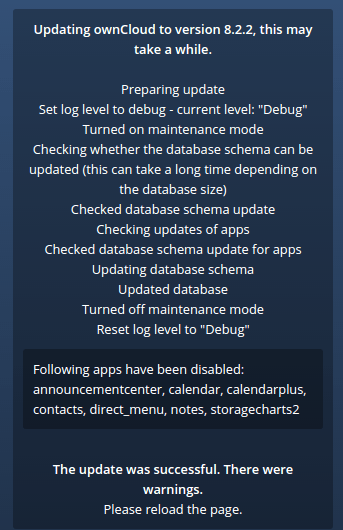
When upgrading to OwnCloud 8.2.2, most of this can be done via the web browser. In the Admin page, you will see on the Updates section.

Screenshot from 2016-02-15 22:43:09

Here is where it will first make your backup. When that is complete, you can click Proceed.

If this fails, run this command to clear out your resources directory.

rm -Ir /var/www/owncloud/resources/*

When you refresh, you will see your frontpage with the option to Upgrade. You can do it from the website or run the following command. The website is graphical but the command line is better for larger installations.

sudo -u www-data /var/www/owncloud/occ upgrade

Screenshot from 2016-02-15 22:45:51

When completed, you will need to enable your apps from the website or the command line. I like doing the website because then I can see new apps and be given a chance to update the apps to newer versions.

Screenshot from 2016-02-15 22:47:01

Posted in How-To, Nextcloud/OwnCloud | Tagged , , , , | Leave a comment

Marriott High Speed Internet

During my stay at Marriott, I learned a bit about their Wi-Fi.

These are the two tiers of speeds they have as tested on speedtest.net in February 2016:

  • High Speed Internet = ~1 Mbps
  • Enhanced High Speed Internet = ~10 Mbps

On the Enhanced High Speed Internet, only 3 devices are can be connected per this error:

3-device limit reached. To connect a new device, please disconnect one of your other connected devices.

To get another device onto the Internet, you could connect to the free High Speed Internet. But everyone wants the faster Internet.

Self-Service, per Front Desk Instructions

  1. On one of your existing 3 devices, forget the hotel’s Wi-Fi network.
  2. Reboot your device.
  3. Try to connect again.
  4. You are returned to the Internet connection choice page.

Assistance Required

  1. If the above steps did not work.
  2. Call the Front Desk  and tell them the situation. They will have Guest Tech for Marriott call your room in a few minutes.
  3. They will ask for one of the existing 3 device’s internal IP address to bounce from Enhanced High Speed Internet.
    1. Windows – run ipconfig in the command prompt
    2. Android – Look up Advanced Wi-Fi settings.
    3. The IP address is in the form 172.20.*.*
  4. They will bounce that device, allowing your new device to connect.

If you are lucky, Guest Tech will give you an Access Code and you can have four devices on the Enhanced High Speed Internet!

Change from High Speed Internet to Enhanced High Speed Internet

If you accidentally connected to the High Speed Internet before you realize you could connect to the Enhanced High Speed Internet, then you will need to try the Self-Service and Assistance Required steps above to reset the network you are connected to.


Posted in How-To | Tagged , , , | Leave a comment

Beware of Phishing Emails at Work

Phishing emails and its advanced brother called spear phishing are dangerous for everyone. At work though, you do not want to be the person that compromises your business by introducing a hole in the security. Hackers only need one way in to wreck havoc.

A great way to prevent phishing emails is to move all emails from external sources into an “external” folder or give it a colorful category  in Microsoft Outlook. Obviously, this is great if you are only emailing people within your company, but at least categorizing your emails as external will remind you each time that this email may have untrusted links and attachments. A gentle reminder for security.

As described in the Source, you want to make a Rule that runs on all emails. In that rule, have it move all emails from specific people to your “external” folder. (or add a category tag). The specific people should be “@company.com”. If there are many sub-domains, then use “company” in the sender field.

This is not full-proof but it gives you an extra reminder to hopefully prevent havoc.

Sources:

Posted in How-To, Security | Tagged , , , , | Leave a comment