Install OwnCloud’s Self-Signed Certificate into Android’s Trusted Credentials

To get apps like DAVdroid and MyOwnNotes to connect to your OwnCloud server, you need to import the certificate into your Android’s Trusted Credentials. Android seems to have a bug because it will tell you that you have successfully installed .cer or .crt files when you actually have not, especially if you self-signed the certificate. So, here is how to fix that but you will have to do some work on your OwnCloud server.

When you self-signed your own certificate, you probably missed a few key parts that will require you to make a new certificate for your server. There are two likely causes:

  1. If your IP or domain name changed, then your certificate will not be accepted by Android. It will see a difference between the name of your website and the name in the certificate.
  2. In the certificate, CA Flag = TRUE needs to be set but the default when creating a certificate is CA Flag = FALSE. Android will not accept this in a self-signed certificate.

Here are the steps to get yourself working with modifications to existing sources out there:

  1. Follow this article. You will create your OwnCloud certificates.
    1. In Step 4, search “CA:FALSE” and change it to CA:TRUE
      1. # This goes against PKIX guidelines but some CAs do it and some software
        # requires this to avoid interpreting an end user certificate as a CA.
        basicConstraints=CA:TRUE
      2. # Extensions to add to a certificate request
        basicConstraints = CA:TRUE
    2. In Step 4, also search for “[ CA_default ]”. Change the first to the second so that references to the certificates and keys will work.
      1. dir             = ./demoCA
      2. dir             = /root/SSLCertAuth/
  2. Now, you can install the certificate onto your Android device.
    1. Automatic – Use CAdroid (suggestion from here)
    2. Manual:
      1. Follow these steps to export certificate from your website using Firefox in the .der format.
      2. Copy to your Android device (I used my OwnCloud server.) and place in your SD Card root directory.
      3. Follow the steps from this question but be happy that you will not have the same problem!
  3. Be sure to refresh the certificates of various apps that pointed to OwnCloud
    1. Browser – visit your website again
    2. Desktop file sync – Accept the dialog that appear.
    3. OwnCloud Android App – Attempt to change the password of your account so it will fetch the new certificate.
    4. CalDav and CardDav Sync – Accept the dialogs that appear.

Sources

Posted in Android, How-To, Nextcloud/OwnCloud | Tagged , , , , , , , , , , , , | 1 Comment

Plex

I found Plex was a good solution for streaming a video from my laptop to my TV. It removes the need for an HDMI cord and the quality was great with no buffering. I have not gotten to streaming my music or pictures or even using Plex from outside my own house since I just installed Plex but I will get to that eventually. For now, I want to give Plex’s associated costs a run down.

Media Server: This is free to download and install on your computer. It is really good at categorizing your files and downloading relevant metadata for them.

Chromecast: This is a free way to stream from your computer to your TV. You need to use your computer to control it so you might need to get off the couch to pause the movie.

Roku: You can do everything you want for 30 days with a free trial. After that, you need to pay for a Plex subscription.

Android: The app is free and you get quite a lot of use out of it but the ability to stream a video to your phone is limited until you pay for a subscription or pay a small one-time payment ($5).

In conclusion, Plex is awesome and it hooks you quickly and then slowly takes away functionality unless you start paying for it. They are a business so this is fine but just beware that long and extended use of its features is probably not free. Your best bet seems to be using the Chromecast paired with the Media Server.

Sources:

Posted in Plex, Reviews | Tagged , , , , , , , , , , | Leave a comment

Synergy – sharing your keyboard, mouse, and clipboard across computers

Having two computers at your desk does not mean two keyboards and two mouses. The software called Synergy hosted over on their webite can help you share your keyboard, mouse, and even clipboard across multiple computers. That is right, multiple, not just two!

Is it free? It does not seem like you can download it for free from their website anymore. They are charging at least $10 to download it. It was once free and I found that Synergy was still in my Software Manager on Linux Mint, though it was an older version that still worked fine. I am sure you can find Synergy for Windows or Mac from some websites that cache software versions.

I recommend downloading the QuickSynergy program as well. Synergy’s step up is not that straight forward while using QuickSynergy you can get a simple computer set up quickly. From the code.google.com link in the sources, here is a cleaned up and better explained set of instructions:

  1. Client machine is the one that will be controlled by the host’s keyboard and mouse.
    • (Bravo) Run hostname and remember the one line result
  2. Host machine is the computer with the mouse and keyboard you want to share.
    • (Alpha) Run ifconfig and grab the inet addr:192.168.1.XX
  3. Download and install Synergy and QuickSynergy on host and client machine.
  4. Run QuickSynergy on host machine.
    1. Input the result from (Bravo) in the Share>directional box.
  5. Run QuickSynergy on client machine.
    1. Input the result from (Alpha) in the Use>Server hostname/IP address: box.
  6. Click the Execute button on the host and client machine.
  7. Test your set up by moving you mouse to the client machine!
  8. Notes:
    1. Do not run Synergy and QuickSynergy. Choose one or the other.
    2. If you want to have more than one computer to the left, right, top, or bottom, you will need to use Synergy.

Sources

Posted in How-To, Linux, Reviews | Tagged , , , , , , , , , , , , , | Leave a comment

IP Addresses in your OwnCloud config

If you are hosting your OwnCloud at your home, then this article is relevant to you. If you are hosting it on someone else’s servers, then ignore this post.

This is a list of IP Addresses in your OwnCloud configurations that need to change when your local IP address gets changes (e.g. 192.168.1.*) or when you external IP address gets changed by your Internet Service Provider (ISP).

OwnCloud

  • /var/www/owncloud/config/config.php

Apache

  • /etc/apache2/httpd.conf
  • /etc/apache2/sites-available/ownCloud-ssl.conf

Router

  • Forward your HTTP and HTTPS ports to your new IP

DNS Server

  • Try to automatically update your DNS server or manually update it when your ISP changes your home’s IP address.

Permissions

### cd /var/www/
### chown -R www-data:www-data owncloud

Posted in How-To, Nextcloud/OwnCloud | Tagged , , , , | Leave a comment

Domain Name for your Home Computer

There is a better solution than remembering your home IP address when you need to log into your home server. (I suggest OwnCloud). A long string of numbers is forgettable and changeable! You do not want to hard code your server address as an IP that will change and need to be updated. Here is the better solution.

(1) dot.tk – You can get a free domain name from here. The domains are funky (.tk, .ga, and others) but you can point your domain name to a DNS server.

(2) namecheap.com – With your domain name, you can create an account and tell namecheap’s DNS servers to resolve your home IP address. I set up my “www” and “@” hosts.

(3) When your home IP address changes, go to namecheap and update the record with your new IP address. All your devices referencing your domain name will continue working after this update.

(4) Set up automatic DNS updates. Your computer can tells namecheap to update the domain name automatically when your computer senses an IP address change. (More details coming when I implement this.)

Posted in How-To, Nextcloud/OwnCloud | Tagged , , , , , | 3 Comments

Following Sport Playoffs

It is really easy to follow NCAA March Madness but if trying to follow the playoffs of another sport like the NHL or NBA is difficult. The major websites like ESPN, SI, CBS Sports, or even NHL.com and NBA.com tend to only show you the most recent games of the match-ups. You need to do a lot of work to visual the bracket and how the teams are doing.

I found and like the following sister sites. They have them for other events but these are good ones. They do not update in real-time, rather nightly, but you can see how the series are progressing. Just a quick shout-out. Well done.

Posted in Reviews, Sports | Tagged , , , | Leave a comment

Root LG G3 with Lollipop

It was annoying but you can root your LG G3 running Lollipop. I confirm it works for the T-Mobile American phone but the comments in the source confirm it works for almost any LG phone.

I followed the same set of instructions on highonandroid.com and on reddit.com/r/LGG3. They really are the same set of instructions but I preferred highonandroid.com because of the accompanying video.

Some issues though:

  1. highonandroid.com – I think you need to have SuperSU installed. The reddit.com/r/LGG3 post has this as their first step.
    1. But if you already had SuperSU installed before upgrading to Lollipop, uninstall it and then reinstall it. This will get you to the Lollipop version.
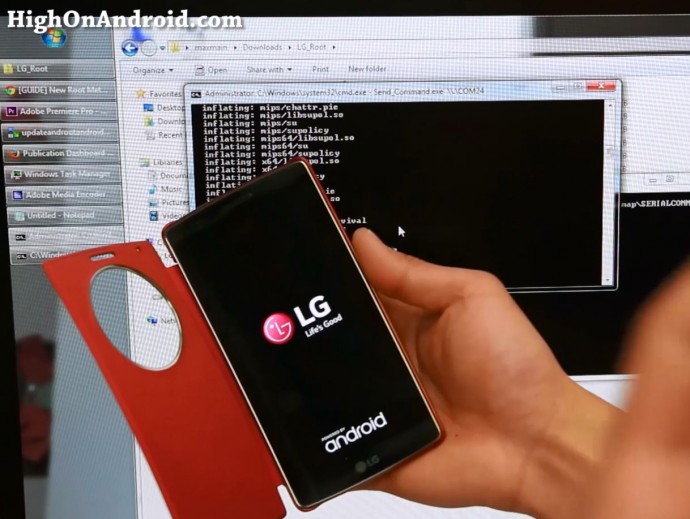
  2. Encrypted devices will fail after the Send_Command step. You need to decrypt your device first. There will be output if the step works. No output means it failed.
    1. After running the long command in step 11, you should see “inflate” output shown in their picture.
  3. Step 11 on highonandroid.com is one line. Your browser might make it two lines but it is one line:
    1. sh /data/local/tmp/lg_root.sh dummy 1 /data/local/tmp/UPDATE-SuperSU-v2.46.zip /data/local/tmp/busybox

Sources:

  1. http://highonandroid.com/android-smartphones/how-to-root-lg-g-flex-2-g2-g3-on-lollipop/
  2. http://www.reddit.com/r/LGG3/comments/2ydptk/workinghow_to_lollipop_root/
Posted in How-To, LG G3 | Tagged , , , , , , | Leave a comment

Lollipop for T-Mobile LG G3 before OTA

So when I got the news that the T-Mobile LG G3 is finally getting the Lollipop update as an OTA update, I was happy. But I wanted it sooner than waiting for the OTA. So, I installed it via a software update and LG’s PC tools. Quick note though, upgrading to Lollipop in this way will remove any rooting you had done with your device.

From the LG support website, you can download their “LG Mobile Support Tool” for Windows. They do not support Linux. With this tool, you can follow the instructions given and attempt to have the application recognize your phone. You can also use the LG PC Suite tool as an alternative.

If your phone is recognized, lucky you! Keep reading.

If your phone is not recognized, here is some troubleshooting steps:

  • I had issues doing this stemming from a bad USB cord I was using. If your computer does not recognize your phone right away, try a different cord.
  • Use the LG Mobile Support Tool to install the drivers after selecting your phone type. This tool looked poorly programmed and it proved true because it could not find the drivers for my phone.
  • Download the LG PC Suite. This is a well put together application and through this tool you can properly download the drivers for your phone. You cannot do upgrades over Wi-Fi though.

If your Windows machine recognizes your device, you might be able to use the LG Mobile Support Tool to do the upgrade but that did not work for me. I ended up using the LG PC Suite and selecting “Mobile Device” > “Mobile Device Software Upgrade”. I followed the steps here to upgrade the firmware. The process took less than an hour but looks like it hangs at certain points. Just be patient and keep it plugged in.

Note: None of my data was lost but you should still consider backing up your phone before upgrading, as always. The LG PC Suite had such an option but I did not use it.

Sources:

Posted in How-To, LG G3 | Tagged , , , , , , , | Leave a comment

ownCloud 8 and Tasks

As of March 7, 2015, ownCloud 8 does not ship with the Tasks app. The developer is working to make it ship with ownCloud 8 by default, but in the mean time, you can easily enable it yourself. Just follow the instructions from the github Tasks page:

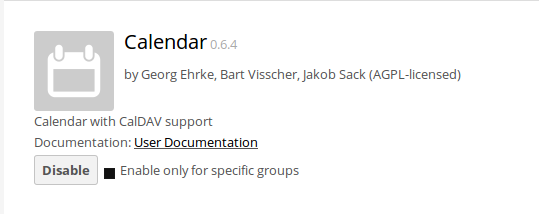
  • Enable the ownCloud Calendar app. It will be located under Recommended or Not Enabled.
  • calendar enable
  • Run the following code on your computer with ownCloud
    cd /var/www/owncloud/app
    git clone https://github.com/owncloud/tasks/
  • Enable the ownCloud Task app:
  • tasks

Enjoy your tasks!

Sources:

Posted in How-To, Nextcloud/OwnCloud | Tagged , , , | 5 Comments

Google to Owncloud, Contacts and Calendar

When you have OwnCloud managing your files, you might also want it to start managing your contacts and calendar. When I set it up, I was not sure how well the syncing would be but it ended up being efficient and reliable. Here are the learning points I got on making the full transition.

Make sure you have enabled the Calendar and Contacts. You can click on the OwnCloud icon on the top right of the page and select “Calendar”, “Contacts”, or if you see neither, “Apps”. Install it through the page that comes up.

Calendar

Phone Sync with Owncloud

The free app I use is Caldav Sync Free Beta. This performs more as an account service rather than an app so you need to access it through the Settings>Accounts & sync option. You can add an account through here using the username, password, and URL of your calendar. You obtain the URL via the Calendar page and selecting the link button for the calendar. Do not get confused and select the bottom left nut/gear and grabbing the Primary CalDAV address. This address will not work.

Thunderbird Sync with Owncloud

Make sure to install Lightning into Thunderbird so you will have a calendar. Then simply select:

  • File>New>Calendar
  • On the Network
  • CalDAV
  • The URL of your Calendar.
    • Obtain it from the link next to your calendar and not the nut on the bottom left of the Calendar page.
  • Complete the steps and you should see the calendar begin to sync.

You might also want to install the add-on Provider for Google Calendar so you can access your Google Calendar during your transition phase.

Google Data to Owncloud

My solution requires using your Android phone and the app iCal Import/Export CalDAV.You will need to have your Caldav Sync Free Beta up and running for this to work. So the app is not too straight forward but:

  • In Google Calendar, go the page called “Calendar Settings” by clicking on the nut on the top right and then settings.
  • In the middle of the page select “Export Calendar” and save the downloaded zip file. It might take a few moments for Google to build the zip file.
  • Extract the files and put them on your Android device (how about by uploading to OwnCloud and then downloading with your OwnCloud app?)
  • Open the iCal Import/Export CalDAV app.
  • Change the active calendar at the bottom to your OwnCloud calendar. It might be defaulted to your Google Calendar.
  • Select import and then select the iCal file you downloaded onto your device.
  • From here, select continue and import the calendar.
  • Your Caldav Sync Free Beta will sync your events to OwnCloud. Give it some time especially if you have been using Google Calendar for a while.

P.S. – The popular fix suggested here is broken as said here and in many other places. It might work for you so you can give it a shot first before my solution above.

Contacts

Phone Sync with Owncloud

The free app I use is CardDAV. I have not needed to pay for the full version. Through this app, you can tell it the username, password, and URL of your OwnCloud CardDAV. The URL is obtained by going to the Contacts page, clicking the nut on the bottom left, and then clicking the link button.

Thunderbird Sync with Owncloud

You will need to install the Inverse SOGo Connector add-on. Then simply select:

  • Tools>Address Book
  • File>New>Remote Address Book
  • Input the URL and the name you want to give it for this contact address book.

You might also want to install the add-on Google Contacts so you can access your Google Contacts during your transition phase.

Google Data to Owncloud

First, make a backup of your Google Contacts. You could lose them all if you mess up.

(Works for the LG G3) From your Android phone after installing CardDAV

  • Go to your Contacts app.
  • Select Settings
  • Select Manage Contacts
  • Select Copy Contacts
    • Copy from Google to OwnCloud Contacts.

Give your phone, Owncloud, and other stuff time to run successfully. I found that it will take up to an hour to fully sync so refrain from checking its progress too often because you will make the sync slow down!

Sources:

Edit Sept 7, 2015 – Changed “bottom left nut” to “bottom left nut/gear”

Posted in Android Apps, How-To, LG G3, Nextcloud/OwnCloud | Tagged , , , , , , , , | 3 Comments

Eclipse Luna Dark Theme on Linux Mint

Update 2 (4/6/2015): The best theme that seems to work flawlessly is “delorean-dark”. Be sure to select it for Desktop and Control in the Themes section. There are many themes are close but this one seems the best all around.

Update: A good post on StackOverflow gets similar results. You can also follow the steps below but I suggest installing Sublime Text because XML files are much easier to read with that turned on.

On Linux Mint and maybe other operating systems, the Eclipse Luna dark theme looks great while editing text but the buttons in eclipse are difficult to see:

unreadable buttons

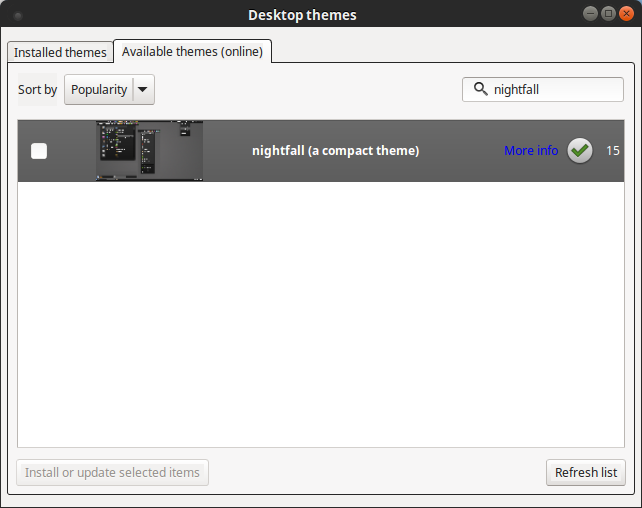
This will quickly get on your nerves. You can click and not release the buttons to see what is there. To get back visibility on your buttons, the way I found to work is to add the nightfall theme available for Linux Mint. So, navigate to the themes menu and select “Add/remove desktop themes”. Search for and install “nightfall (a compact theme)”.

install nightfallBack in the main Themes page, set Window borders, Controls, and Desktop to nightfall.

add more themesWhen you apply the changes, you might see a white background for your text in Eclipse. Restart Eclipse and for me, everything looks correct.

P.S. – For a quicker fix, you can try enabling “High Contrast” mode for your controls in the Themes section and changing the Editor background color to a dark grey instead of System Default. This actually was good in the short term but caused additional errors that it was not worth using anymore.

Posted in How-To, Linux | Tagged , , , , , , , | Leave a comment

Hard Drive from Linux (Disable Hybrid Shutdown)

On dual-boot computers, Linux computers are usually able to see and have write access to the Windows hard drive. This is useful for transferring files between the operating systems. With Windows 8 and 8.1, Windows added a quick boot feature that does not actually shut off the hard drive completely.

Windows now will partially shut down and save some of its state to the hard drive, called a Hybrid Shutdown. Linux can see the hard drive but will receive an error when accessing the hard drive, frustrating Linux users who just want to look at Windows.

The links in the Source give a much larger and detailed explanation on how to access the hard drive, but here is the quick guide. I suggest disabling the Hybrid Shutdown if you are spending most of your time in Linux:

  1. Type “Power” into the start screen search menu.
  2. Select the “Settings” option form the results.
  3. Select “Power Options”.
  4. Select “Choose what the power buttons do”.
  5. Select “Change settings that are currently unavailable”.
  6. In the “Shutdown settings” section, uncheck “Turn on fast startup (recommended)”.
  7. Save the changes.
  8. Test your solution by rebooting into Linux!

Source:

Posted in How-To, Linux, Windows | Tagged , , , , , , , | Leave a comment

Ideas for your old smartphone

When you get a new smartphone, you will quickly forget about your old phone. But that phone a few years ago was top of the line and can still pack a punch. Having faced this dilemma a few times, I suggest doing something with the phone and not just ignoring it. It should not become a paperweight. Without a SIM card, you can no longer take phone calls but you can get WiFi mostly everywhere you go along with having the GPS capability still. If you think of it like having an iPod back in the 2000s or a tablet of today, you will have the right mindset. Here some of the ideas I have come up with for repurposing your old phone.

Emergency Phone (Added on 2/14/2015)

Even without a SIM card, having a charged phone in your car is good for emergency calls. Most phones will allow you to dial calls in an emergency, so having an extra phone that can be ready for this situation is a good idea.

Sell it for money

You should be able to make around $100 or more by selling it on Craigslist. Someone will be looking for your phone because they love the model but keep breaking it (my experience) or they are looking for a cheap upgrade from an even older phone. Just be sure to wipe your phone’s data before selling!

Your only risk is not having a backup phone if you break your phone, but you can find and buy a similar model fun that has depreciated even more in cost if this happens. You just might have to wait a few days.

Dashboard camera

If you had a phone mount in your car but it is too small to fit your new phone, you could leave that in your car and download an app like AutoGuard Dash Cam. Your old phone has a camera and a GPS that you can use to record your drives. You might get something neat on camera or video to protect you in a court of law. Getting the phone to charge enough while you drive so it does not die when your car is parked is a balancing act and is really affected by the temperature (i.e. the coldness of winter will drain your battery).

Car GPS

Why should you buy a standalone GPS like a TomTom or a Magellan when you can download an offline GPS app? The map files will be a few GBs but will be incredibly helpful if you are lost and without cell reception. I have used Here BetaMaps.me, MapFactor, and Sygic. Sygic was the best but only gives you a week free trial. Here Beta is your best bet since it is done by Nokia. Maps.me only offers an overhead view while MapFactor does not tell you street names to turn onto.

Media Streaming Device

Your old phone can be a media device. It is ready for playing music whenever you want, but your phone’s speaker is small. If you have speakers or a smart TV, download all the music apps you want and set up some widgets. You are ready to rock and roll quickly in the morning.

Security Camera

There are apps in app market places like the IP Webcam (I have not used yet) that will let you record motion in your room and even stream online with additional setup. Cheaper than buying a full system, good to use as a test system, or just to use when you are away on vacations.

Fitness Device

If your new phone is bigger or you hate getting text messages or phone calls when you are out on a run/bike, your old phone still have GPS to track your run and Wi-Fi to sync when you get home. You will not have cell reception so download your music before you go or just listen to the sounds of nature.

Alarm clock

Many people sleep with their phones near them since they talk or look at online news before bed. This means in the morning when the alarm clock goes off, it is so close and so easy to press the snooze button. With your old phone, you can easily put it on the other side of the room so you will wake up when it goes off.

Development phone

When doing smartphone development, each phone is a little different. Having multiple pieces of hardware to run on will make your testing better and if for some reason you want to run long overnight tests or run software that could mess up your phone, old phone to the rescue!

Game phone

Similar to a media phone, make your old phone a game phone. It may not be able to run all of the newer games, but try to optimize it. Remove unnecessary apps and download a Game Booster like Clean Master for game enjoyment, especially for younger children.

Posted in Reviews | Tagged , , , , , , , , , , , | Leave a comment

Consolidating your weight information

I have used a few different weight and calorie tracking apps over the years. Specifically, I have used MyFitnessPal, LoseIt, and Noom. As I have moved between these apps, seeing your weight across them is difficult and not supported directly. Also, the graphs are different. Here is advice to get your data in one place.

If you want to control your data, you will need to do it yourself inside a spreadsheet. An alternative is using another weight tracking app but then you have another weight tracking app that you will need to keep updating. If you use a spreadsheet, you can do bulk updates and then do really whatever you want with your data.

All the apps will allow you to export your data in some fashion. I attached the original sources below.

  • LoseIt will give you a nice csv file you can use for each date you weighed in.
  • MyFitnessPal does not support exporting out of the box so the tool below will give you a JSON file. You will need to separate each {…} into its own line. Then import into a spreadsheet and format. Then delete dates that you did not weigh in. Spot these dates because they are duplicates of the previous date’s weight. Lastly, add the year for each date.
  • Noom supports emailing your data under Settings>Export/Email Noom Data. It will be in a .csv file.

Slowly but surely you will move all of this data into one place. I suggest having a column to label the source of the date/weight pair because you might have questions in the future. You could go further and try to obtain your doctor records since birth so get an even cooler graph!

When you make your graph, look into implementing a moving average. This will help your graph have a smoother feel and it will eliminate bumpy graphs that can be discouraging if you weigh yourself daily.

If you put your data into Google Sheets, you will be able to have a really neat graph of your weight, similar to the graphs on Google Finance.

Sources

  • LoseIt Export – http://www.weightgrapher.com/faq#import_loseit
  • MyFitnessPal Export – https://www.designbyvh.com/myfitnesspal-export-data/
Posted in Android Apps, How-To | Tagged , , , , , , , , , | Leave a comment

Hacker Vision – Chrome Extension

For those that do not like to look at black text on a white background, there is an extension for you. For those that can stand the eye strain, read no further.

In Google Chrome you can download the Hacker Vision extension. It will run on every website and it does an inversion color scheme everywhere. Websites become much easier to read and your eyes are no longer stressed. It is not only white to black though, all the colors on the site change making sites look surprisingly refreshing.

The extension has the ability to be toggled off and on or disabled for a website the next time you visit. The second setting seems to sync across Google Chromes but I am not totally sure.

I have found that some websites will actually look a lot cooler. Websites like Google Voice and Google Calendar that have not had GUI updates in a white turn from ugly white to a sexy black.

(Edit 1/10) Two issues though are that images are sometimes hacker-fied and embedded YouTube videos will be contrasted when they are in full screen. This is fixed by opening the video on YouTube.

On a similar note, if you have not switched your searching to DuckDuckGo, they have a theme for their page that you can set that is white on black. I recommend using that and disabling Hacker Vision for DuckDuckGo.

Download Hacker Vision here – https://chrome.google.com/webstore/detail/hacker-vision/fommidcneendjonelhhhkmoekeicedej

P.S. – Does anyone know of a similar add-on for Firefox?

P.S.S. – Does anyone remember in Microsoft Word 2003 the option to have a white text on blue background option? It was discontinued and not in Word 2007. You can do a High Contrast theme in Windows 7 though and get the desired contrast in Word.

Posted in Reviews | Tagged , , , , , , | Leave a comment